
If you want to pick a winner for an Instagram giveaway in a clear and reliable way, this guide walks you through the full process with the Instagram Comment Picker. You will learn how to log in, select the right Instagram post or Reel, apply the correct giveaway filters, load comments, start the raffle, and share the result afterwards.
Quick step summary
If you want the short version first, this is the basic flow:
- Open the Instagram Comment Picker.
- Log in with Instagram or Facebook and allow the requested permissions.
- Select your connected Instagram account and the giveaway post or Reel.
- Choose the giveaway filters and raffle settings that match your rules.
- Click Get Instagram comments to load the entries.
- Click Start to pick a winner.
- Save the results, share the winner, or pick a new winner if needed.
Prefer a visual walkthrough? Watch the step-by-step video tutorial below. This tutorial shows only the login process with Facebook Login.
What is Instagram Comment Picker?
Instagram Comment Picker is a tool that helps you choose a winner from the comments on an Instagram giveaway post. Instead of manually scrolling through comments and trying to pick a winner yourself, the tool loads the comments from your selected post and lets you apply giveaway rules before starting the draw.
It supports organic comments from regular Instagram posts, videos, and Reels. It does not support Stories. If you are using boosted posts, ad comments are handled separately. For that, export Ad Comments, and include those via the extra entries option in the Instagram Comment Picker tool.
Why use a comment picker instead of picking manually?
Manually selecting a winner from Instagram comments can be slow, messy, and easy to question. It becomes harder when your post has many comments, duplicate users, tagging requirements, or extra giveaway rules.
A comment picker gives you a much clearer workflow. You can load the entries, apply filters that match your giveaway rules, and then run the draw from that filtered list. That makes the process easier to explain to participants and easier to repeat if a winner needs to be disqualified.
Who can use Instagram Comment Picker?
The tool is made for users with a professional Instagram account. That means you need an Instagram business account or Instagram creator account. Personal Instagram profiles are not supported.
You can use it for:
- Regular Instagram posts
- Instagram videos (Reels)
The tool only loads organic comments from the selected post. Ad comments from boosted posts are not included in this tool, but can be added via the extra entries.
Instagram Collab Posts are only supported for the original creator of the post. If you are only a collaborator and not the creator, the post may not appear in the post list because of Instagram API limitations.
Free vs Comment Picker Premium, briefly explained
The Instagram Comment Picker is free to use to pick one winner from one post with up to 100 comments. Comment Picker Premium removes those limits and gives you unlimited comments and posts, up to 10 winners, extra filters, advanced winner selection, branding options, and an ad-free experience.
If you need those extras, see Comment Picker Premium.
Step 1: Log in with Instagram or Facebook
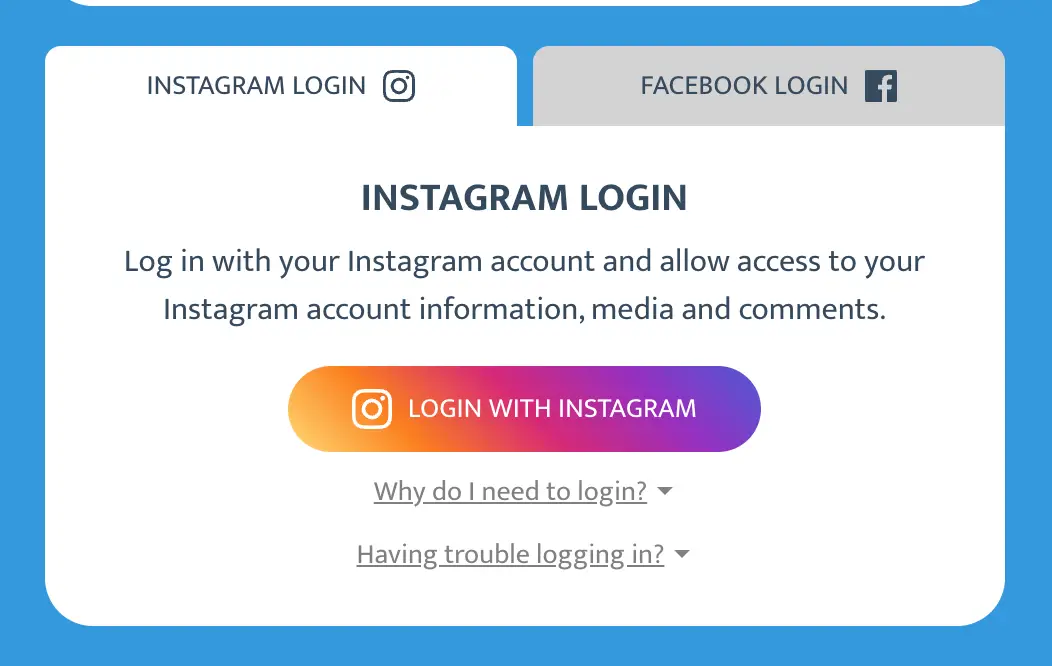
When you open the tool, you will see two login buttons:
- Instagram Login
- Facebook Login
Both login methods use the official Meta platform to request access to your Instagram account data, media, and comments. This access is needed so the tool can retrieve your posts and load the giveaway comments.
Instagram Login
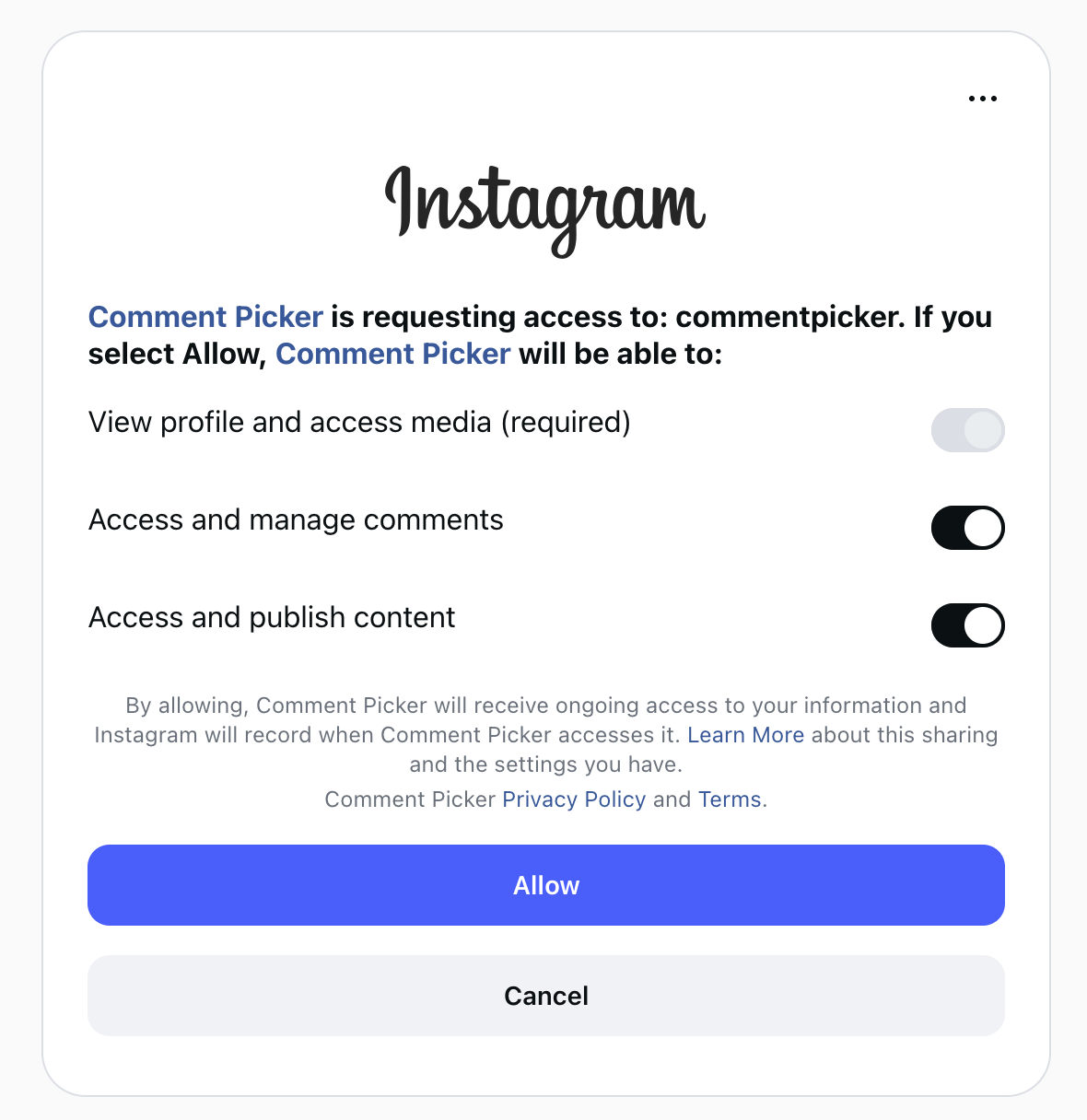
If you log in with Instagram, Meta will show a permission box. In that dialog, Comment Picker requests access to your Instagram account information and comments. The required permissions include:
- View profile and access media
- Access and manage comments
There can also be an optional permission for Access and publish content. This is not needed to pick a winner, but it can be useful if you want to share results directly to your Instagram Story or feed afterwards.
Facebook Login
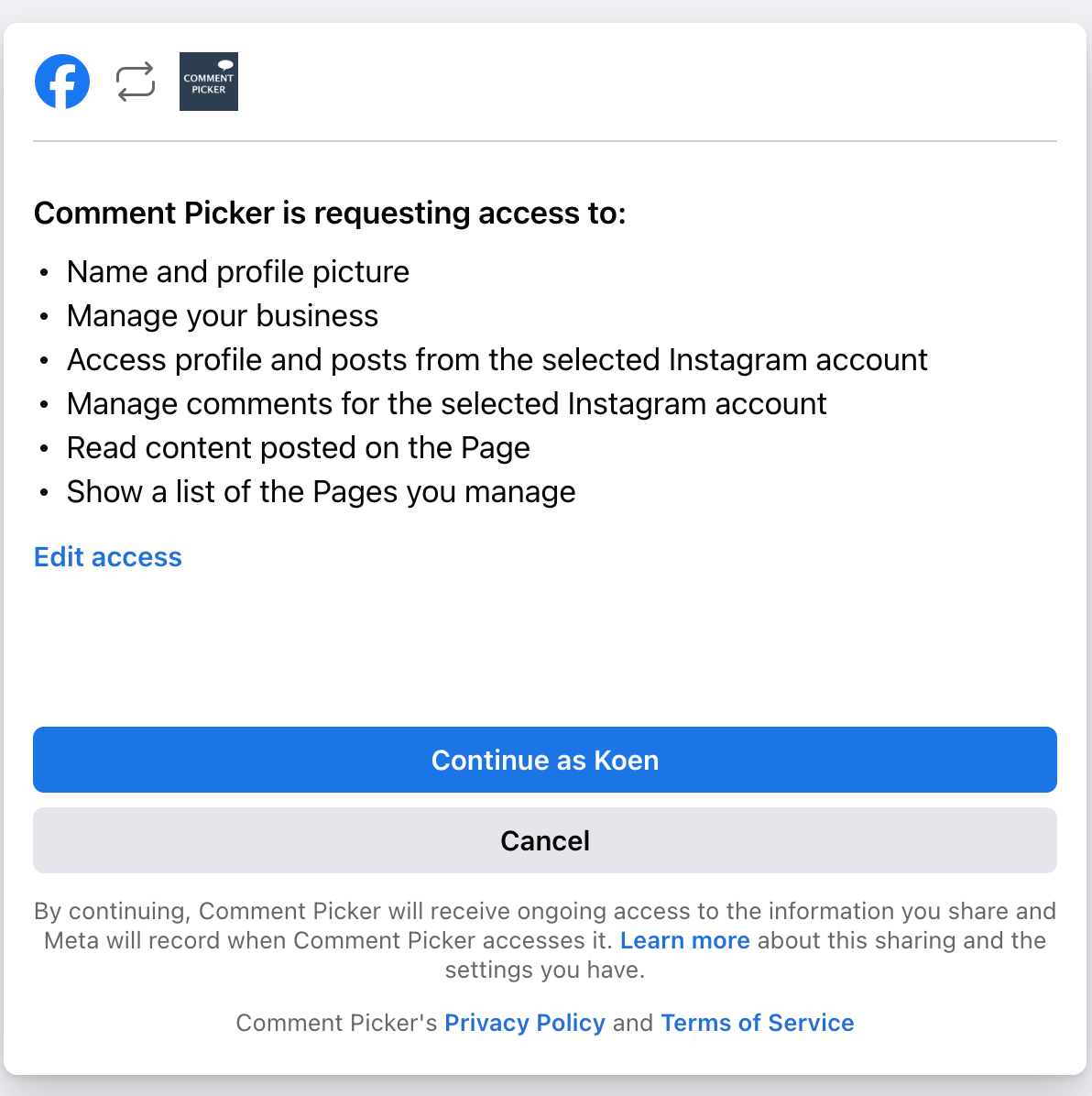
If you log in with Facebook, make sure you are an admin of the Facebook Page that is connected to the Instagram account. In that flow, Meta can request access to:
- Name and profile picture
- Manage your business
- Access profile and posts from the selected Instagram account
- Manage comments for the selected Instagram account
- Read content posted on the Page
- Show a list of the Pages you manage
After a successful login, the tool shows a confirmation message such as: Thanks for logging in with Instagram/Facebook. You can continue with selecting your settings.
Step 2: Select your connected Instagram account
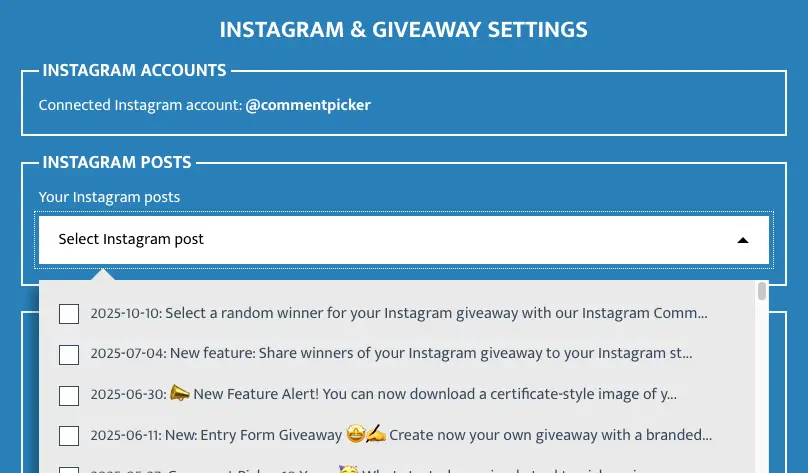
After login, go to Connected Instagram accounts. If only one Instagram account is connected, you will see that account directly. If you have multiple connected accounts, especially through Facebook login, you will see a select box where you can choose the correct Instagram account.
This matters because the available posts and comments are loaded from the selected account only.
Step 3: Select the Instagram post or Reel
Under Instagram posts, the tool shows a list of your available posts and Reels. Choose the giveaway post you want to use for the draw.
If the post you expect is missing, check these points first:
- You selected the correct Instagram account.
- The content is a supported public post or Reel without restrictions.
- It is not a Story.
- If it is a Collab Post, you are the original creator.
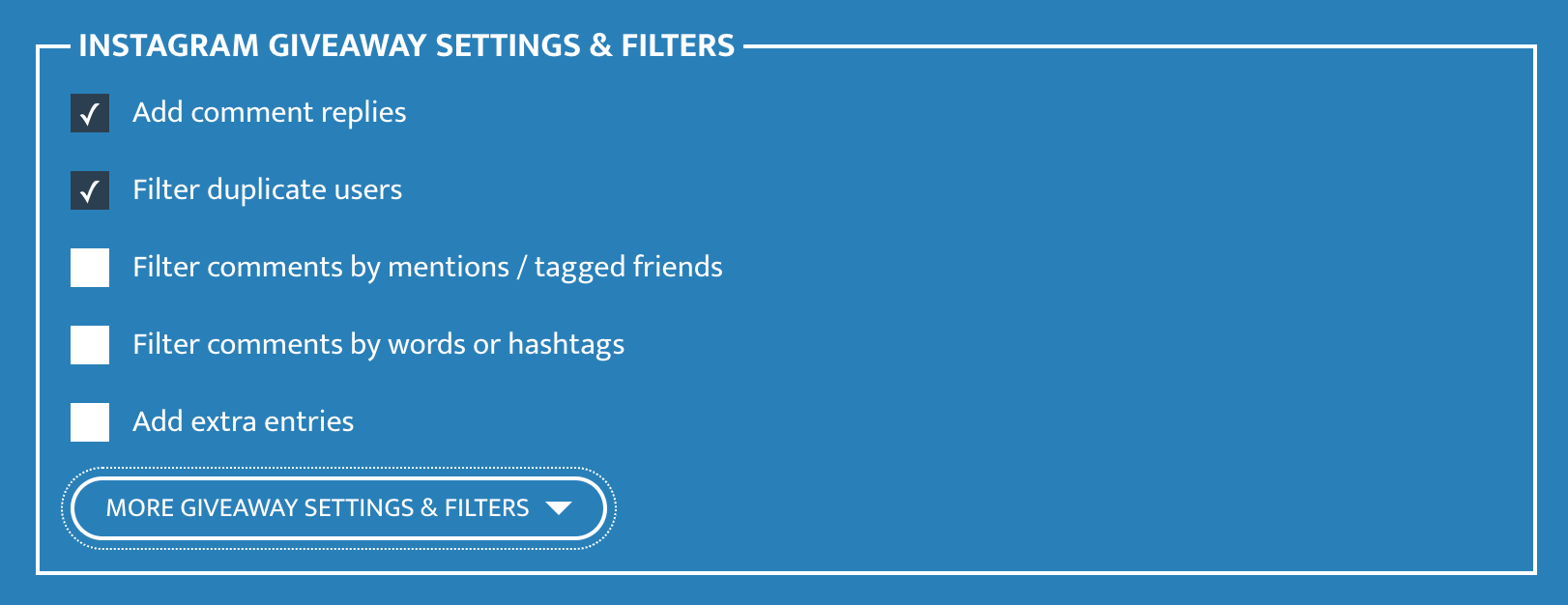
Step 4: Choose your Instagram giveaway settings and filters
Once the correct post is selected, you can configure the giveaway filters. This is one of the most important parts of the process, because the winner should be picked from the entries that actually match your giveaway rules.
Add comment replies
Enable this if you want replies to comments to count as entries too. Leave it off if only top-level comments should be included.
Filter duplicate users
This keeps a maximum of one comment per user. It is useful when your rule is one entry per person and you do not want users to increase their odds by commenting multiple times.
Filter comments by mentions / tagged friends
This Premium filter is useful when your giveaway requires users to tag friends. Once enabled, you can set the Minimum number of @mentions in 1 comment so only comments with enough tagged users are included.
Filter comments by words or hashtags
Use this when people must include a specific answer, keyword, or hashtag in their comment. You can add one or more words or hashtags.
If you want multiple words to appear in one single comment, enter those words comma-separated in one field. For example, entering #hashtag1, #hashtag2 in one field will only include comments that contain both.
If you want to include comments that contain at least one of several possible answers, enter each option in a separate field. For example, adding answer 1 in one field and answer 2 in another field includes comments that contain either answer.
Add extra entries
This lets you manually add bonus entries by username. Each username counts as one extra entry. This can be useful if you want to reward specific users with an extra chance to win, example for sharing to post to their story.
These bonus entries bypass the normal comment filters and are added directly to the total giveaway entries.
Filter comments by date
Use the start and end date fields to include only comments from a specific time period. This is useful if your giveaway had a strict closing date or if you only want comments made during a certain campaign period.
Filter comments by like count
This filter lets you select comments by number of likes. You can set a like count and compare using exact, less than, or more than.
This can be useful for creative contests, most-liked winner formats, or unusual rules such as selecting comments with low or zero likes.
Filter comments made by me
Enable this filter if you want to exclude comments made by the owner of the giveaway account. This helps prevent your own comments from being included as entries.
Filter hidden comments
Use this to exclude hidden comments from the draw, so only visible eligible comments remain.
Limit entries per user
This filter limits how many entries one person can have. After enabling it, set the Maximum number of entries per user.
For example, if John posts 100 comments and you set the maximum to 5, then John gets 5 entries instead of 100. This is a simple way to keep the giveaway fair when users comment many times.
Exclude users
Add usernames you want to exclude from the giveaway, such as spam accounts, previous winners, or blacklisted accounts. Enter the Instagram username, not the person's display name.
Step 5: Choose your raffle settings
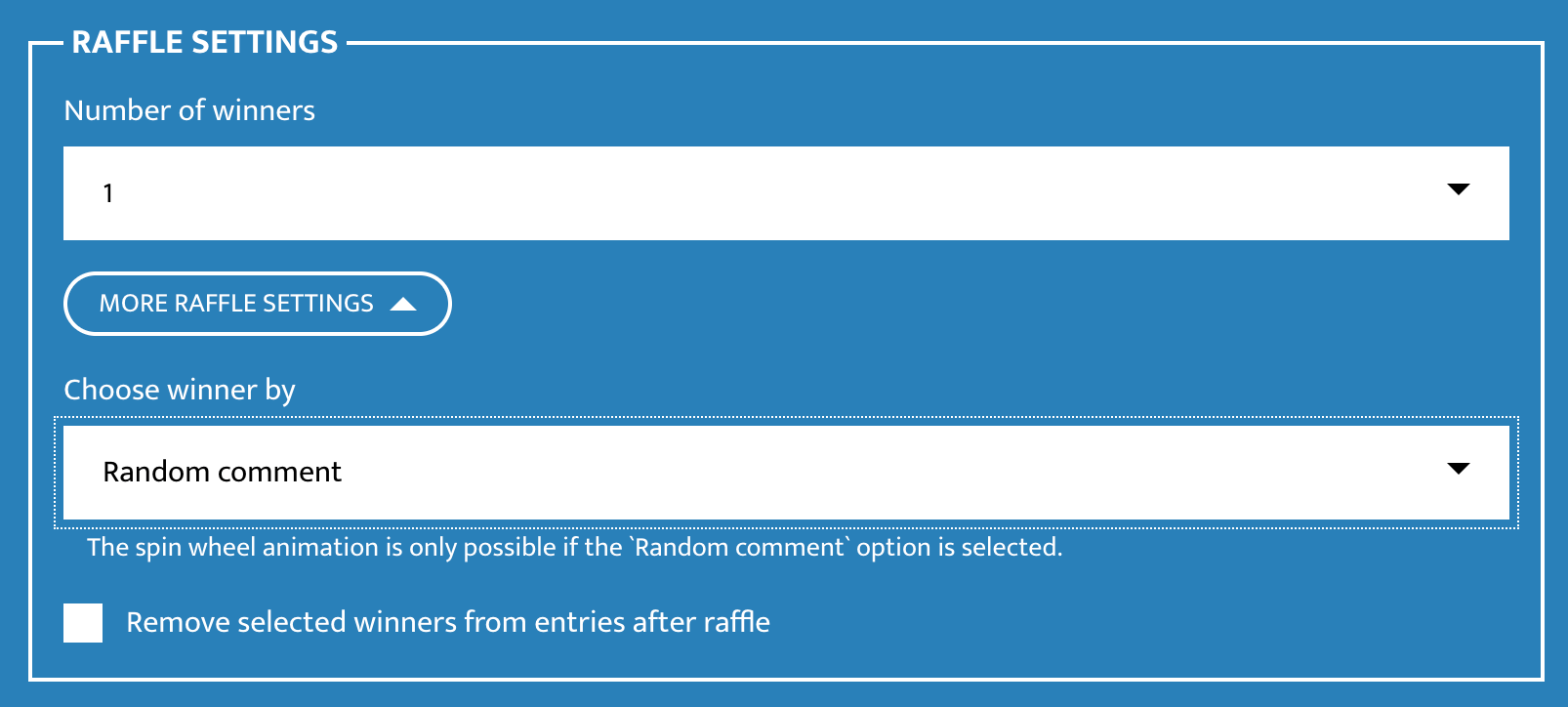
Under Raffle settings, you decide how the winner should be selected.
Number of winners
Free users can select 1 winner. Premium users can select up to 10 winners at once.
Choose winner by
The default option for all users is Random comment. Premium users can also choose:
- First comment
- Last comment
- Most liked comment
- Most comments from a user
This is useful when your giveaway is not purely random and follows a different selection rule.
Remove selected winners from entries after raffle
Enable this if you want selected winners to be removed from the entry pool before the next draw. This helps avoid picking the same winner again when selecting multiple winners or rerolling.
Step 6: Choose your result settings
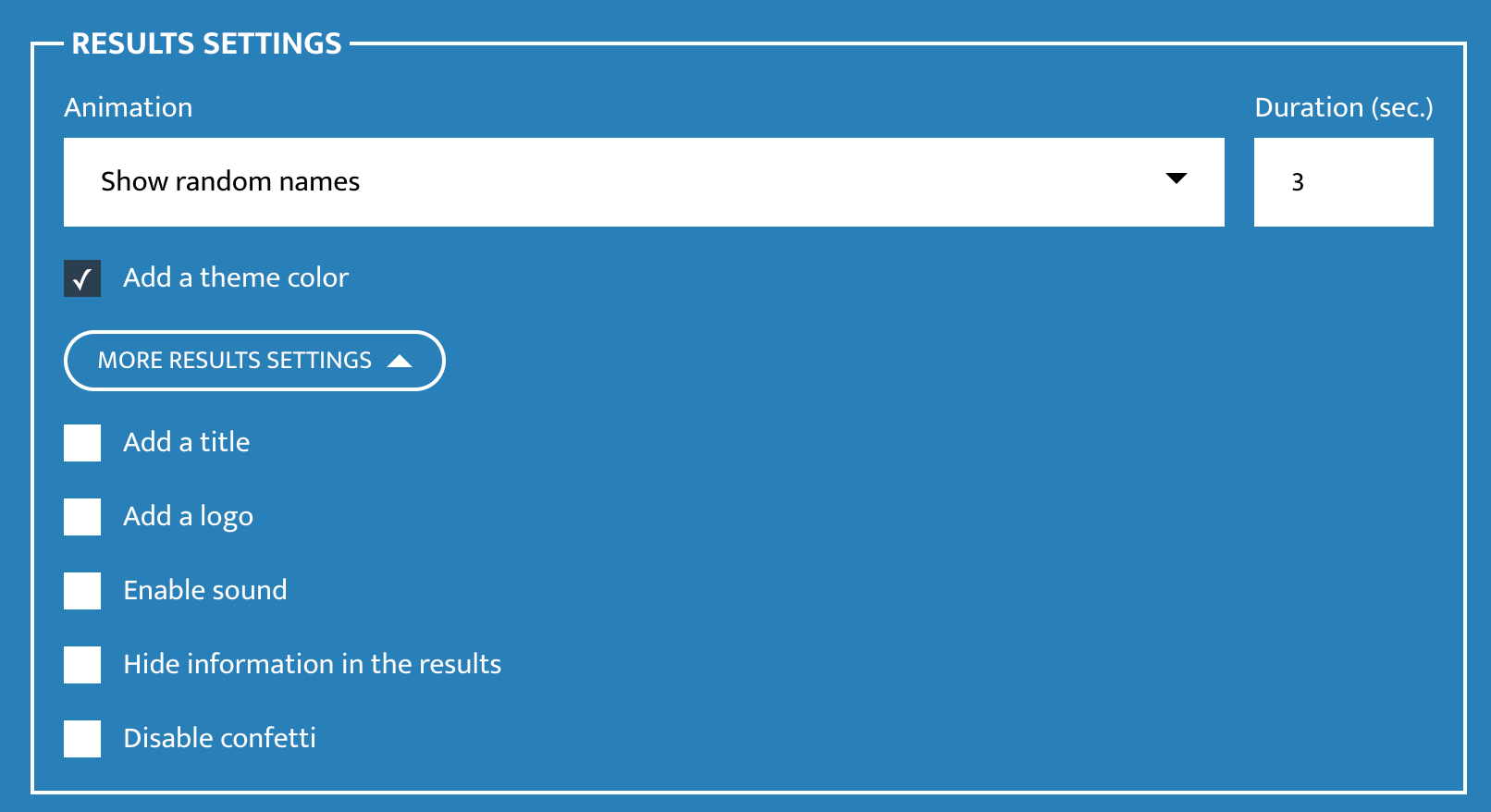
Under Results settings, you can control how the winner selection is shown.
Animations
You can choose from:
- Show random names.
- Wheel of names.
- Spinning names.
- Countdown.
- No animation (quick draw).
You can also set the animation duration in seconds.
Branding options
Premium users can add:
- A theme color.
- A custom title.
- A logo.
These settings appear in the winner selection and in the downloadable result certificate.
Other display options
You can also:
- Enable sound during the selection
- Hide information in the result, such as entry count, winning comment, or share icons (Premium)
- Disable confetti after the winner is selected
Step 7: Get Instagram comments
After selecting the settings, click Get Instagram comments. The tool will then load the comments for the selected post through the official Meta API.
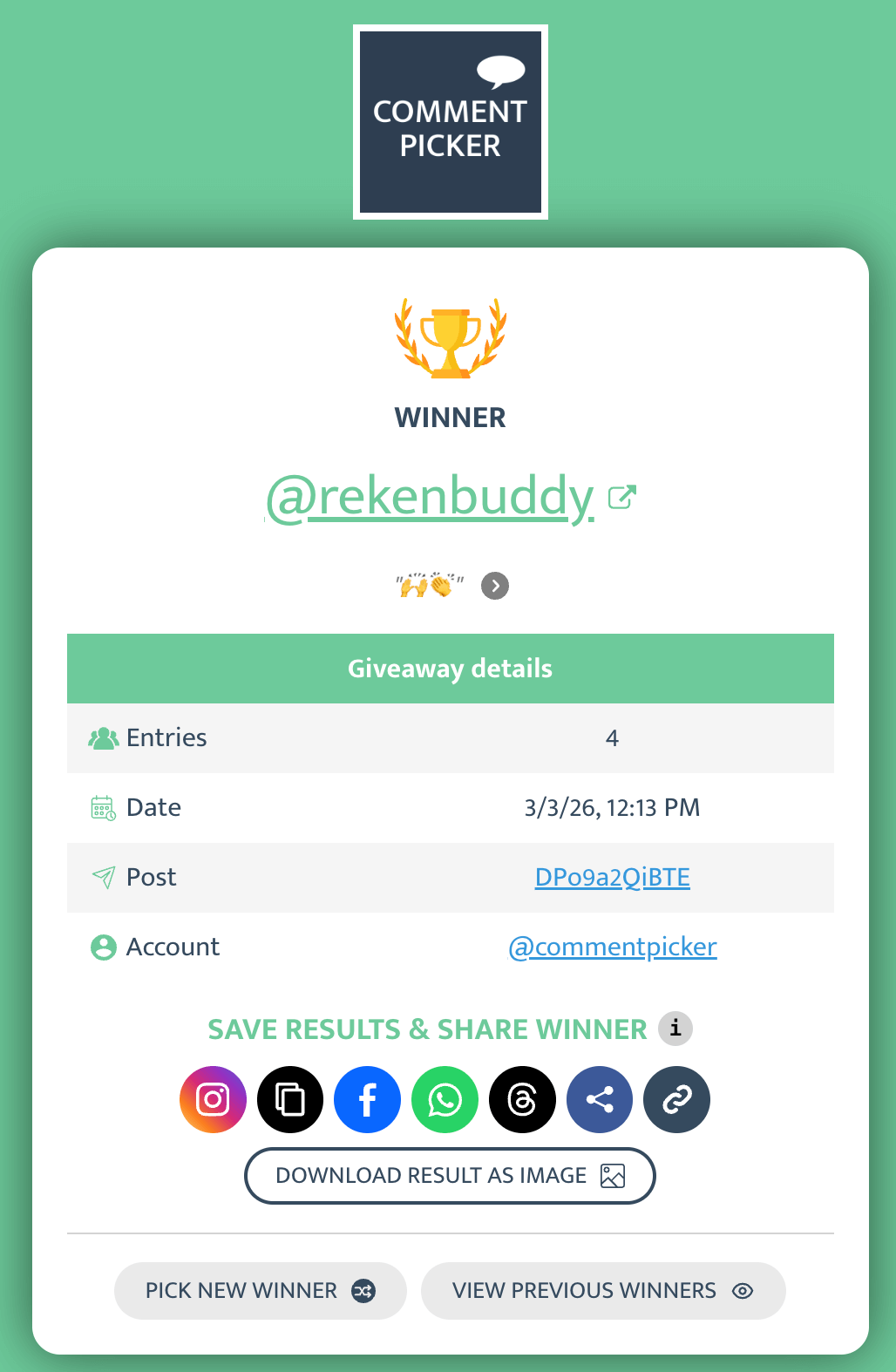
Once loading is complete, the loading icon disappears and you will see the number of entries that match your selected post and filters, for example:
Amount of (unique) comments: 4
This is a useful check before you start, because it shows how many entries are actually included after your filters have been applied.

Step 8: Start the draw and pick a winner
When the comments are loaded, click the Start button to begin the winner selection. Before starting, you can optionally use the fullscreen button to show the draw full screen or the record button to make a simple screen recording from the browser tab.
Once you press Start, the tool selects the winner based on the method you chose earlier. If you left the default setting, it picks a random comment. The selected animation is shown during the draw.
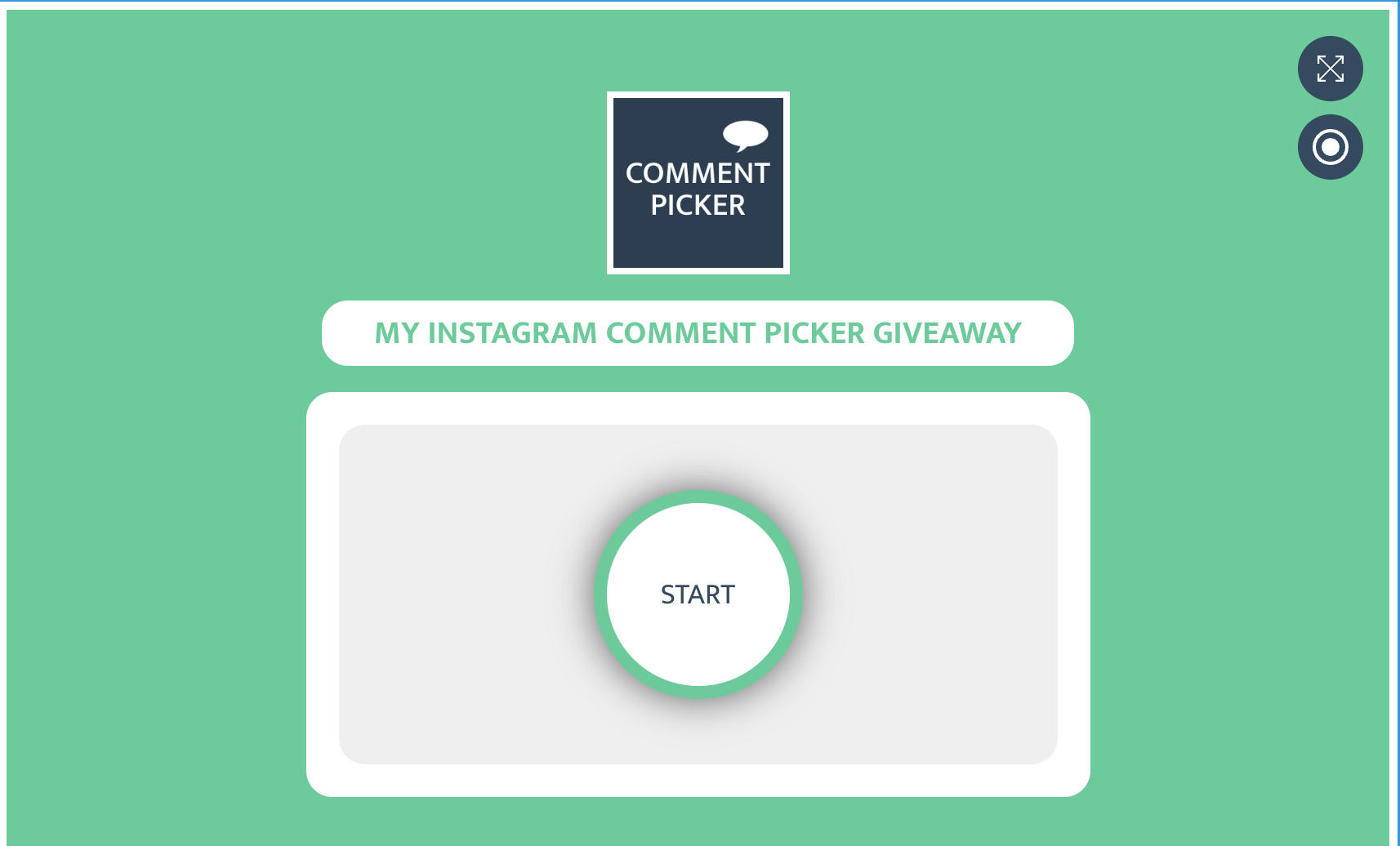
When the draw ends, the winning username and their comment are displayed. If you click the winner name, you can open that user's Instagram profile. If you click the arrow next to the winning comment, you can navigate directly to the winning comment.
How the giveaway result is shown
Under the giveaway winner and winning comment, the tool shows Giveaway details, including information such as:
- Number of Entries
- Date of draw
- Post ID
- Account
This gives you a simple record of what was used in the draw and when it happened.
What to do if the winner does not qualify
Sometimes a selected winner did comment, but still does not meet your full giveaway rules. For example, they may not follow your account, or they may not have completed a step that cannot be checked automatically, such as sharing to Story.
In that case, verify the rules manually and use the Pick new winner button to reroll the draw. This lets you choose another winner without starting the whole process from scratch.
Step 9: Save results and share the winner
After the winner is selected, go to Save results & share winner. This part is useful if you want to document the outcome and show participants how the winner was chosen.
The tool can create a unique result page. For Premium users, results are saved by default and can be seen on their own dashboard. For free users, the result is saved after using one of the share options.
Available share actions include:
- Copy
- Threads
- Native share
- Copy link
The Instagram option can show a popup with ways to share the certificate to your Story, to your feed, or add a comment on the giveaway post. This is why the optional publish permission can be useful in the login flow, but it is not required to simply pick a winner.
See also our related guide: How to save and announce winners of your giveaway.
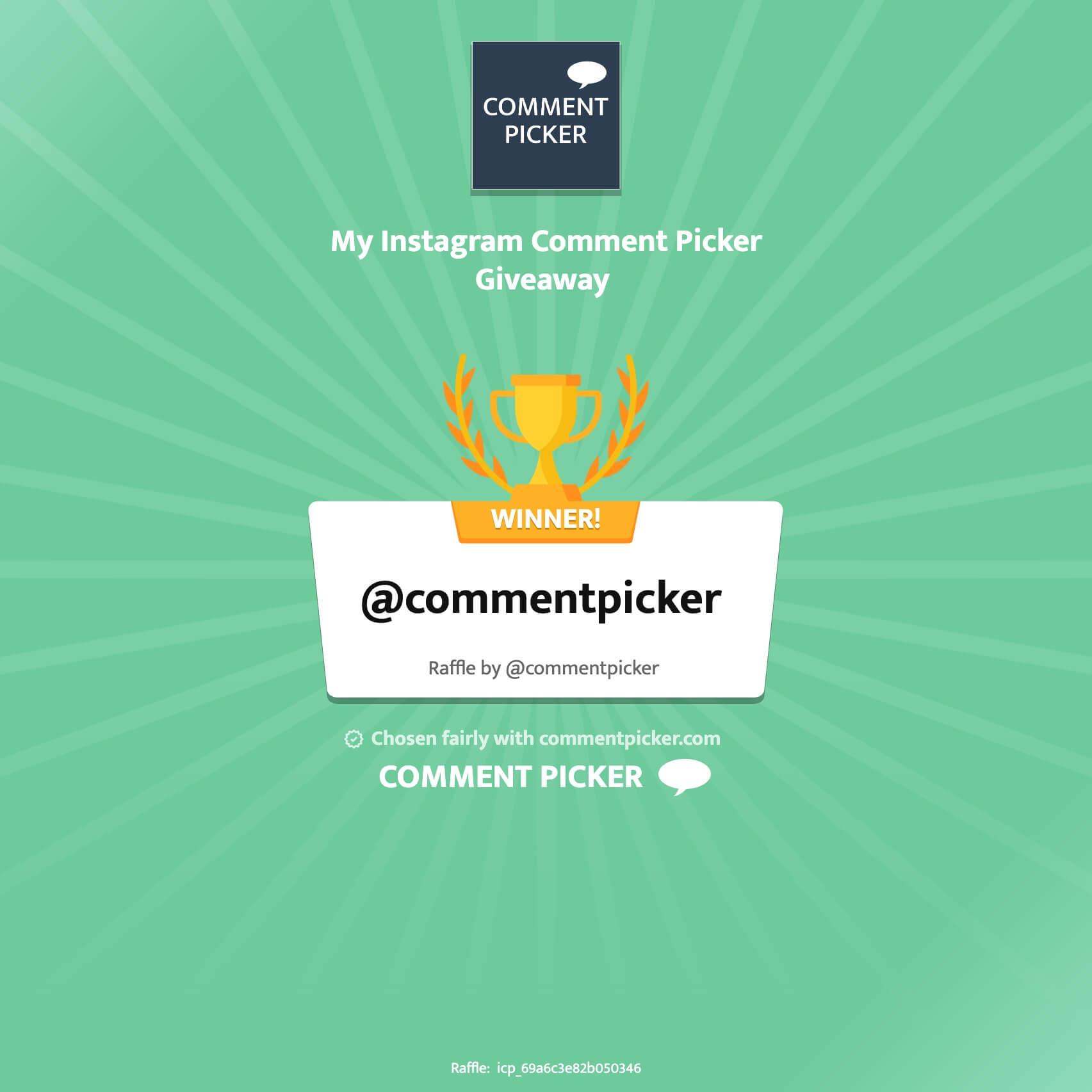
Download the result as an image
You can also download the result as a shareable certificate image. The certificate can be created in Story or square size, which makes it easier to share the winner in a visual way.
A shareable result page or certificate is helpful because it makes the draw easier to explain and gives you simple proof of the outcome.
Why fairness and transparency matter
A giveaway works best when participants understand how the winner was selected. The tool helps by loading the comments from your post, applying the rules you set, and then selecting a winner from those entries.
It is also important to be honest about what can and cannot be checked automatically. The tool can help filter entries based on comments and settings, but some giveaway requirements may still need a manual check. That is why saving the result and rerolling when needed are both useful parts of the workflow.
Common issues and limitations
The login does not work
Make sure you complete the Meta permission dialog during login. If you use Facebook Login, your Facebook profile must be an admin of the Facebook Page connected to the Instagram account.
Also check that popups are not blocked in your browser, and that browser extensions such as ad blockers, privacy tools, or Do Not Track-related blockers are not preventing the Facebook script from loading correctly.
The Instagram account is missing
This often means the Instagram account is not connected correctly through the selected login flow, or it is not a supported professional account or the Facebook Page is not connected correctly to the Instagram account.
The giveaway post is missing
Check that you selected the right Instagram account, and make sure the content is a supported post or Reel and is public available without any restrictions. Stories are not supported. For Collab Posts, only the original creator can access the post through the tool.
Some comments are missing
The tool only loads organic comments from the selected post. Make sure to check the selected comment and user filters. In some cases, the Instagram count displayed on Instagram is wrong, and is not matching the real comments. If you are looking for ad comments from Instagram Ads or boosted posts, they are not included and should be manually added via extra entries.
Can the tool verify every giveaway rule automatically?
No. The tool can filter entries based on supported comment rules and settings, but some actions still need manual checking. For example, if your rules require following the account or sharing to Story, you should verify that yourself before confirming the winner.
Final tip before you start
The best results usually come from keeping your giveaway rules simple and matching the filters to those rules as closely as possible. That makes the entry list cleaner, the draw easier to understand, and the final result easier to share with confidence.
Ready to use the tool? Open the Instagram Comment Picker and start by connecting your Instagram account.